LOGBOOK
Automatic,
smart & reliable.
Learn More About LOGBOOK
In the following sections, we'll show you in detail how LOGBOOK works and how you can keep your evidence-secure logbook with LOGBOOK without much effort.
By the way, if your ship's NMEA system is not yet equipped to receive NMEA data by a computer (PC or tablet), you can find suitable, proven hardware (gateways) in our online shop:
https://shop.2k-yachting.de/hardware/.
Topics:
The Timeline as LOGBOOK's Basic Structure
Diving Deeper into the Timeline
The Focus View
Your Ships in LOGBOOK
Color Schemes
Users and Devices
The LOGBOOK Cloud
Keeping an Evidence-Secure Logbook
LOGBOOK and Logbook Suite
Your Maritime Biography
The Timeline as logbook's Basic Structure
LOGBOOK is based on a vertical Timeline running from top to bottom. All log entries are arranged along this timeline. The timeline begins in the first year for which there is a log entry and extends to the end of the current year.
Log Entry, Day, Passage and voyage
The smallest unit is the Log Entry. It contains NMEA data and additional information relating to a specific point in time.
The Day lists all log entries for that day and collects information relating to the entire day. Log entries and days are arranged by date and time along the Timeline.
Multiple days can be combined into a Passage. Any number of passages in turn make up a voyage. LOGBOOK shows you evaluations for each passage and each voyage.
The division into voyages and passages can be done entirely at your discretion.
Diving Deeper into the Timeline
The timeline can be compressed or stretched more or less depending on how much detail you want to view it.
All your voyages, chronologically arranged
In the Overview, the timeline displays years and months. Each month is indicated by a small dash. As soon as there are log entries for a year, the timeline is stretched for that year. To the right of the timeline, the voyages appear with their names and time periods, and the relevant period is marked in color on the timeline.
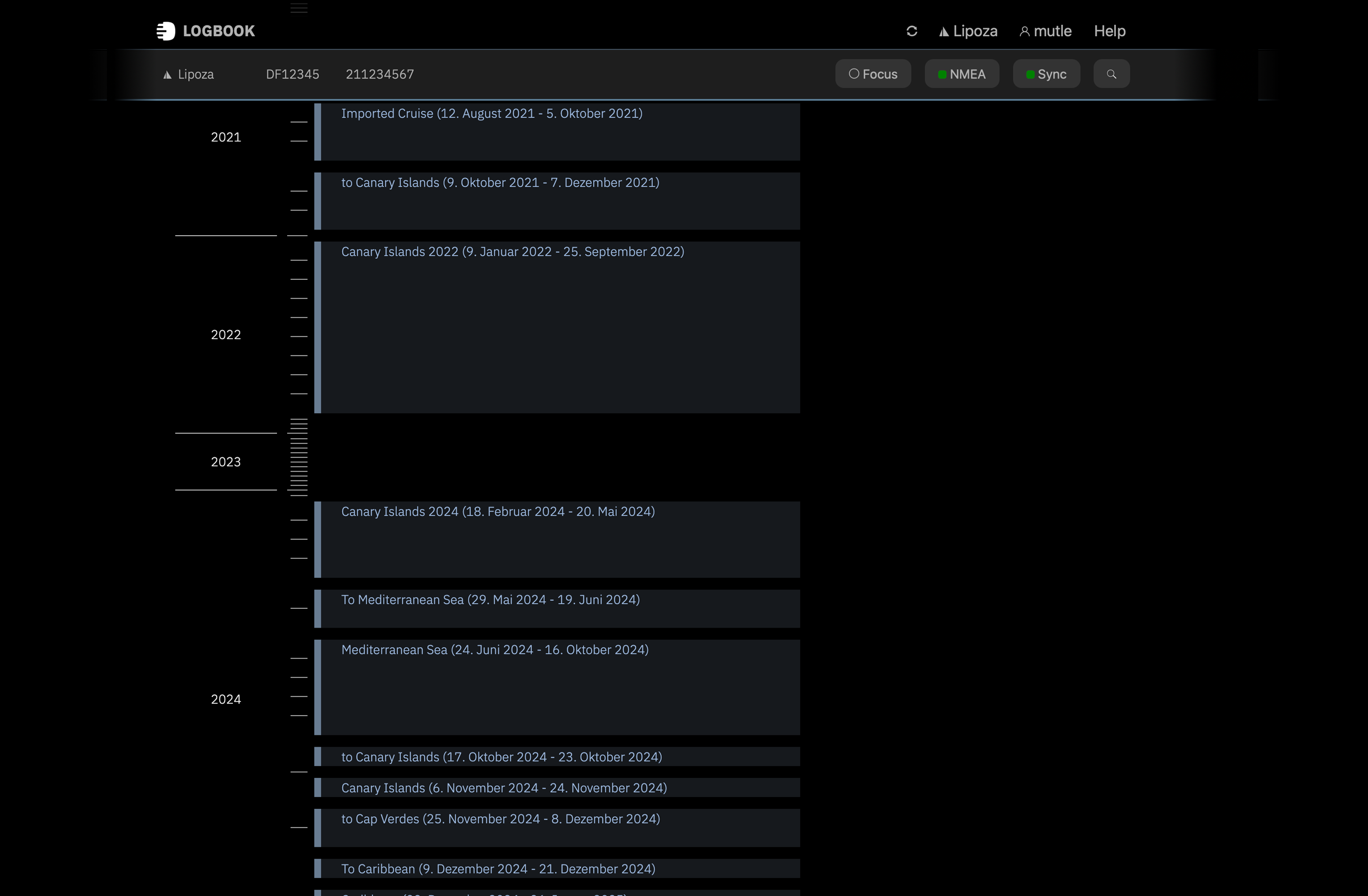 The Timeline shows an overview of all voyages
The Course of a voyage – Chronology of Passages and Days
By clicking on a voyage, LOGBOOK switches to display the selected voyage and now shows a section of the timeline, from the first to the last day of the voyage.
In the voyage area, the name of the voyage as well as the date of the first and last day are displayed.
The voyage data sheet provides a summary and evaluation of the voyage and shows the track of the entire voyage on a nautical chart. The voyage Planning card supports you in advance when planning your voyage.
 The Timeline shows a voyage
Passages – helpful division of a voyage into segments
Directly below the voyage area, the first passage of the voyage is displayed. The passage data sheet contains several cards with data, settings and displays. Here, for example, the passage's track is shown and you can enter information that relates to the entire passage.
Below the header or the passage data sheet, all days of the passage are displayed along the timeline. The period during which the ship was underway on each day is highlighted in color on the timeline. The dashes divide the day into 4-hour sections.
 The Timeline shows a passage's data sheet
The Day – the basic unit of every logbook
Clicking on a day's date displays the day's information. Along the now further expanded timeline, all log entries recorded on that day are listed. On the timeline, each hour of the day is marked by a line. At a glance, you can easily see how the log entries are distributed throughout the day.
Via a toggle button, you can display the day's data sheet with various cards instead of the log entries. On the first card, important day-specific data for the logbook is entered, such as the location at the beginning and end of the day, the skipper's name and all crew members.
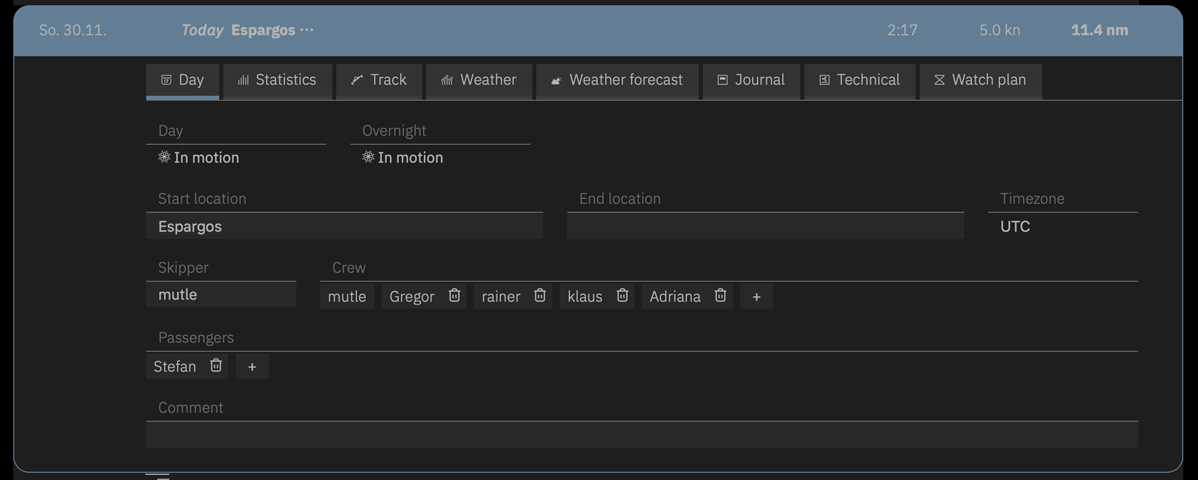 Important day-specific data is recorded on the Day card
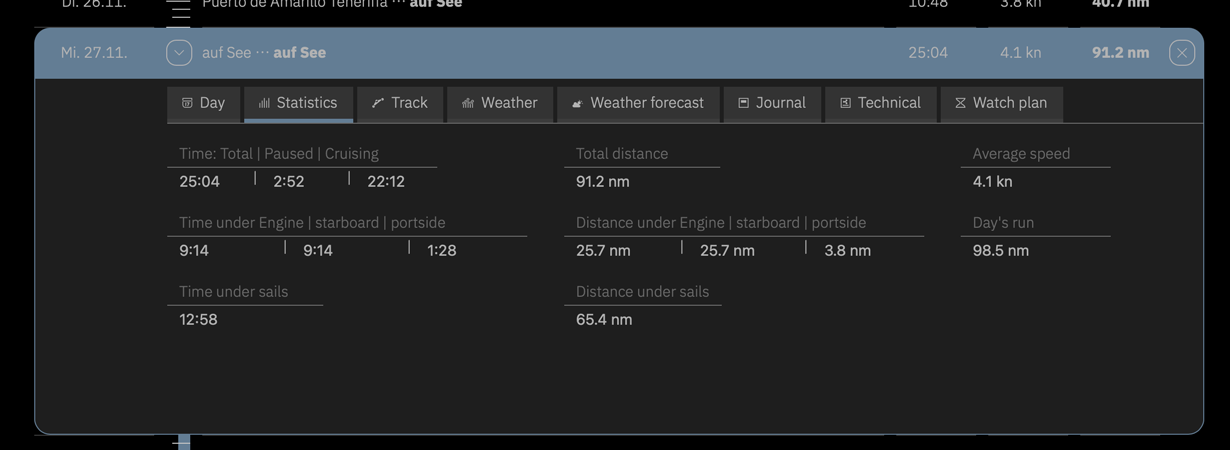 Data view with a day's statistics
The Log Entry – automatically created, individually supplemented
Clicking on a log entry displays the log entry's data sheet. On the log entry data sheet, the automatically recorded data as well as manually made time-specific entries are displayed on several cards.
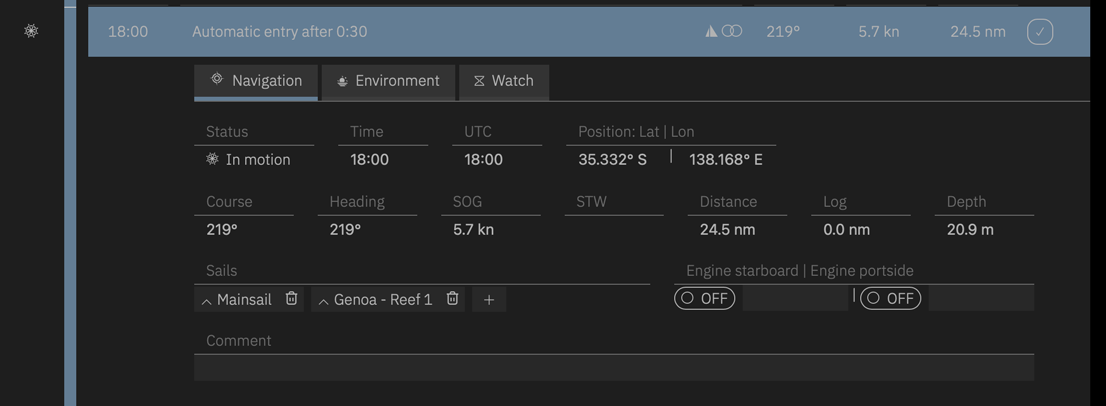 The navigation data in a log entry's data view in Focus view
The Focus View
Recording log data, entering additions to log entries, and entering data for the day takes place in the Focus View. In this view, LOGBOOK zooms in on the current day and only the current day, the previous day, and the upcoming day are displayed. The current day's data sheet is expanded and all log entries are visible. Only in this view are inputs possible on the day data sheets and in log entries.
Which fields contain unchangeable, automatically entered data and which fields allow manual data entry depends on what data is available in the NMEA and can be recognized by the field's appearance.
With the Focus toggle button, you can quickly switch between the normal view of the entire voyage and the Focus view. Of course, data recording continues while switching to another LOGBOOK view.
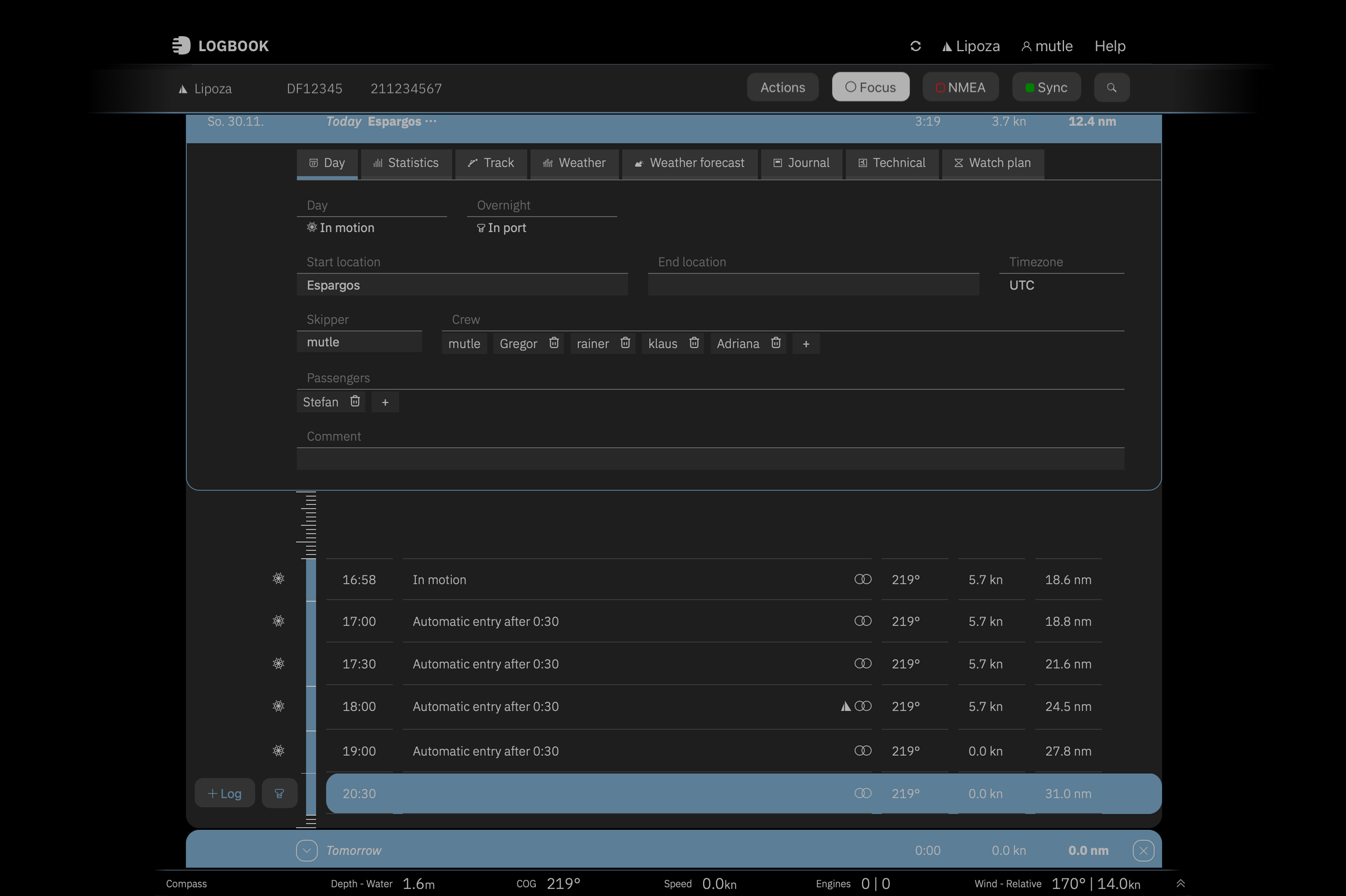 In Focus view, the focus is on the current day
The Log Row – always current, always ready for a log entry
The color-highlighted Log Row, located in Focus view directly below the last log entry, displays the currently read values from the NMEA for course, speed, and distance.
With the + Log button, in the date area directly to the left of the log row, a log entry can be manually created at any time. Via the status button, you can change the ship's status at any time and create an appropriate manual entry.
 Below the last log entry is the log row with current values
Context-dependent buttons in the log row
Additionally, the log row displays context-dependent buttons for direct access to currently important functions, warnings, or notes. This can be, for example, a reminder at dusk that navigation lights must be switched on, an anchor alarm if the ship has moved too far from its starting position, or when the ship is no longer making way, a button that opens a dialog with selection options for the stop entry.
 The log row with button after the ship has stopped – additional inputs for the stop can be made via the button
The Instruments – all data at a glance
When the NMEA connection is active, the current values from the NMEA appear very small at the bottom of the window. The Instruments can be expanded so that you have these values in view even without looking at the ship's instruments.
 Instruments display in minimized view
 The instruments are expanded
Your Ships in LOGBOOK
You can use LOGBOOK on different ships. For each ship, a separate, self-contained logbook is created – exactly as required by official logbook regulations.
When no NMEA data recording is active, you can switch between the logbooks of your ships in the Account Settings. With active data recording, LOGBOOK is connected to the ship and therefore switching to another ship's logbook is not possible.
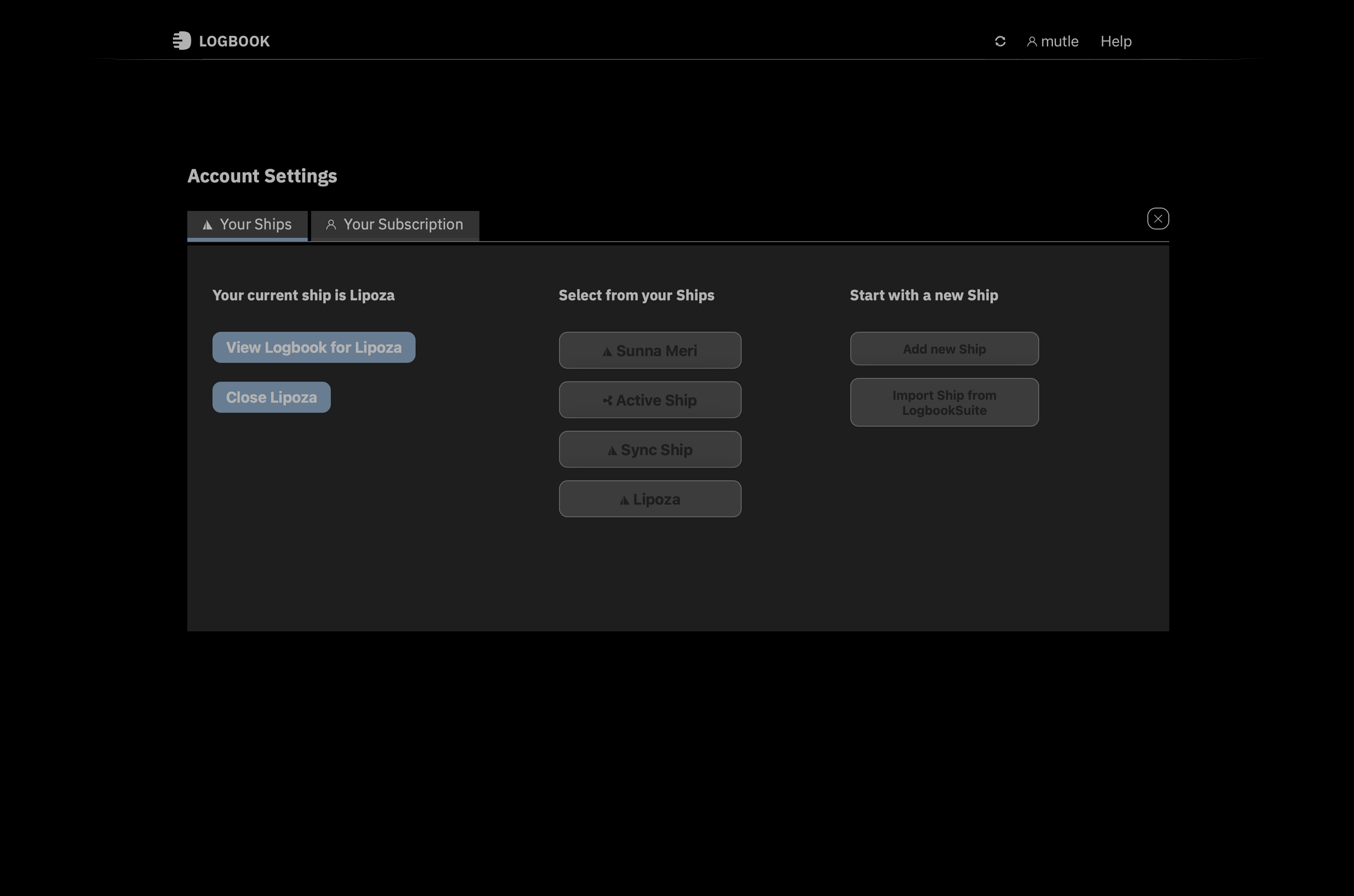 In Account Settings, you can switch between the logbooks of multiple ships
The Ship Data – all information available at any time
Directly below the menu bar, LOGBOOK displays some important information about the ship: the icon for the vessel tyoe (motor or sailboat) and the ship name, as well as other important data such as call sign, MMSI, etc.
With the Ship Data menu command from the Ship menu, LOGBOOK switches to the Ship Data view, where extensive information about the ship and its equipment can be recorded on several cards instead of the timeline.
Menu buttons with important functions
The menu buttons displayed to the right of the ship information provide functions for the current logbook: In the Actions menu, voyages and passages can be started and ended when the Focus view is active. With the print function, the logbook can be printed or saved as PDF.
The Focus button switches between displaying the timeline of the entire voyage and the Focus view.
The NMEA button offers settings for the NMEA connection and enables activating and deactivating data reception. And the Sync button provides information about the synchronization status with the LOGBOOK Cloud.
 The fixed Ship area with ship information and menu buttons is located directly below the menu bar
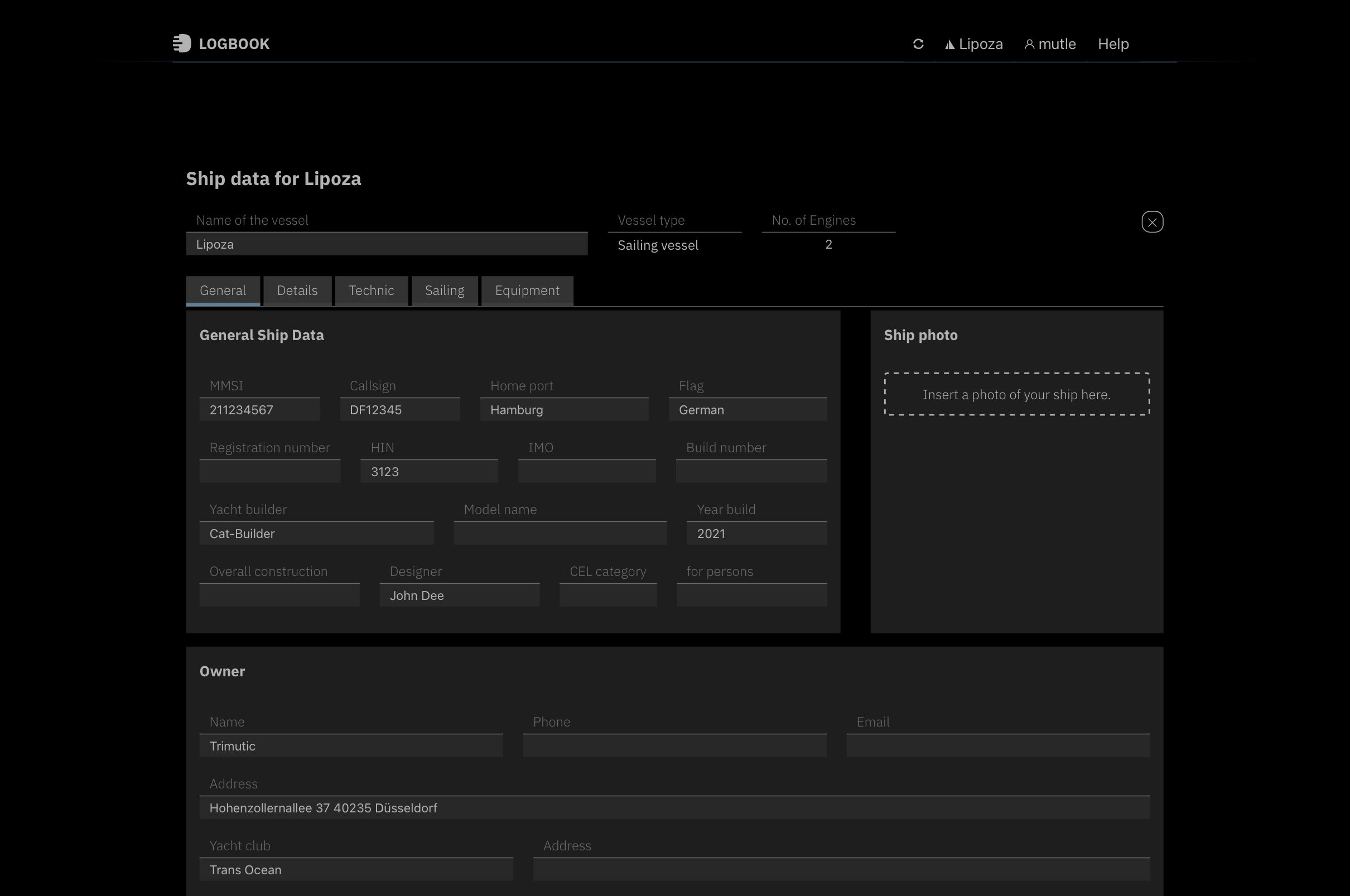 Detailed ship data
Color Schemes
Standard, classic, or night mode – these are the three color schemes for LOGBOOK's user interface. The power-saving standard interface is optimized for self-illuminating displays, while classic mode facilitates the transition from Logbook Suite to LOGBOOK.
Night mode ensures glare-free work with the logbook – ideal for night passages.
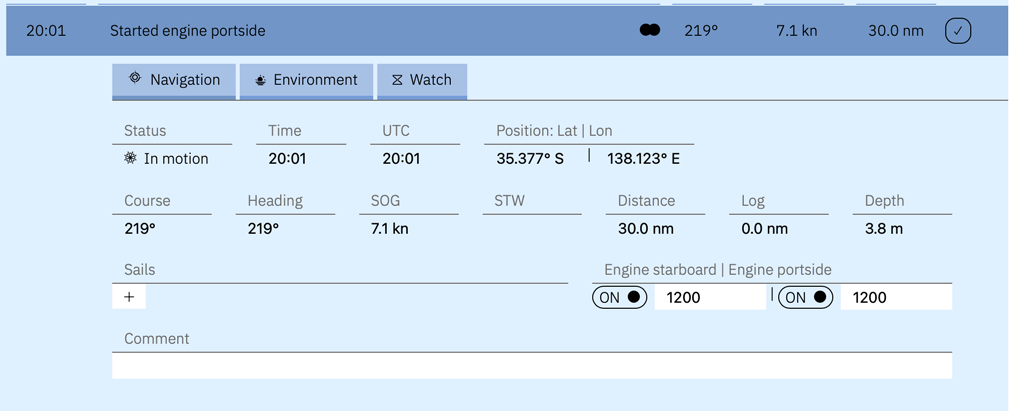 Log entry in classic mode
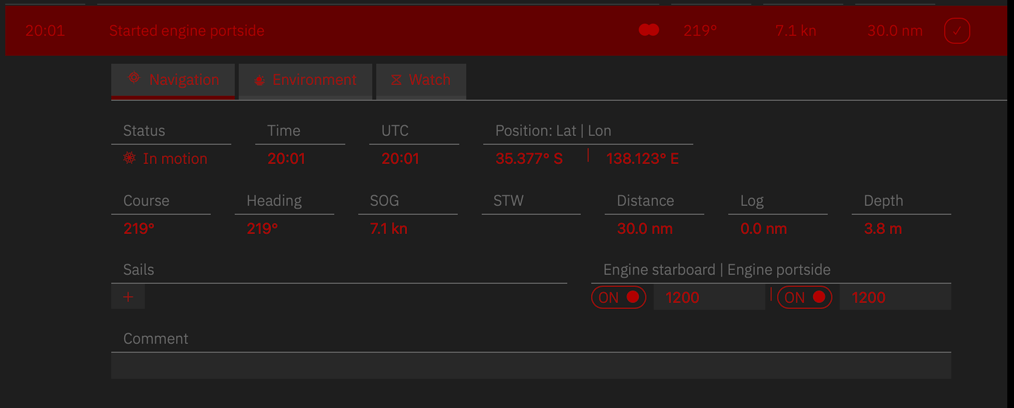 Log entry in night mode
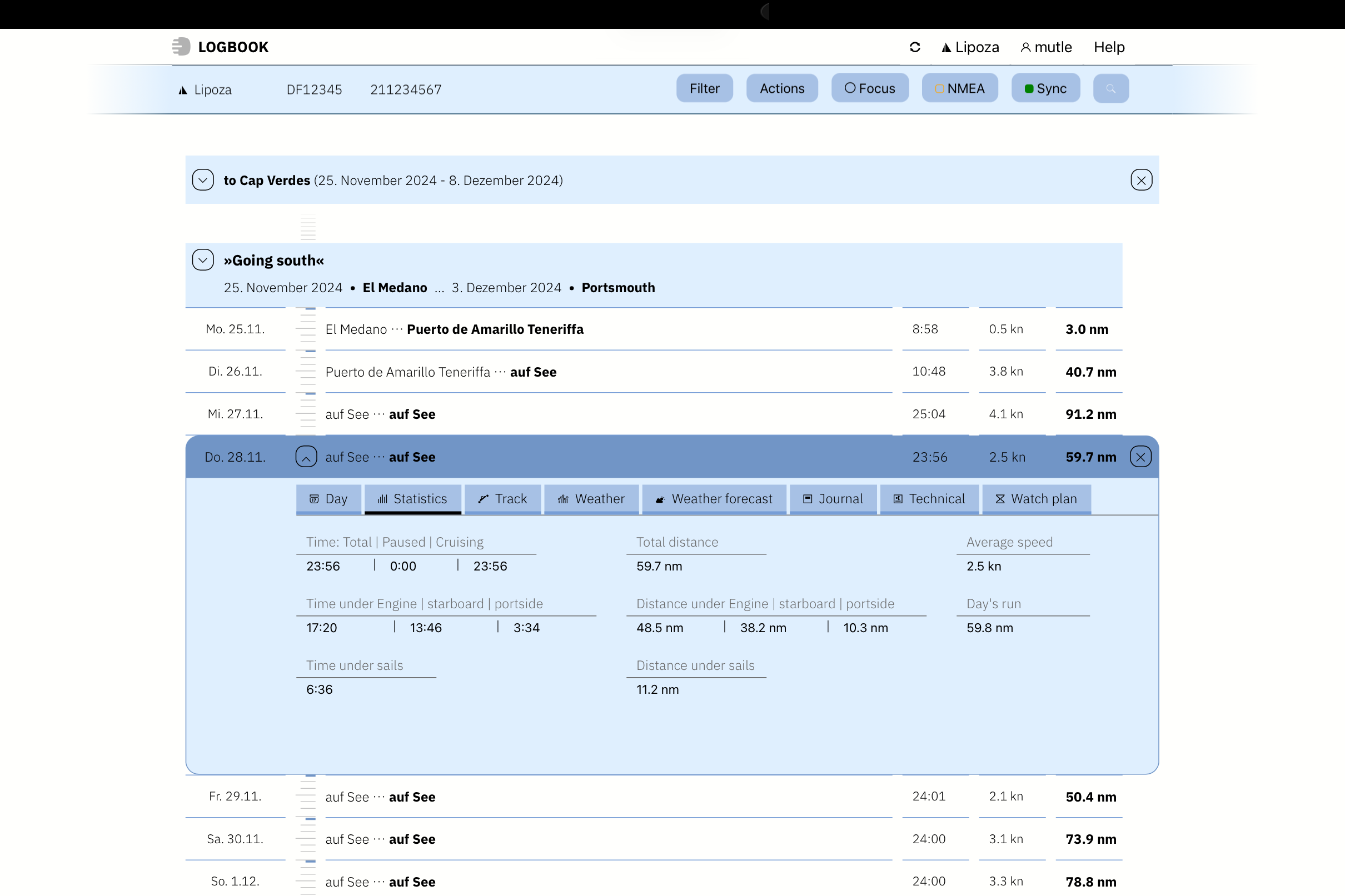 Display of the timeline and a day in classic mode
Users and Devices
LOGBOOK can be used with multiple devices simultaneously. The device that is connected to the ship's NMEA network (or if no NMEA connection is possible, with a GPS device) runs the Primary LOGBOOK. Automatic log entries are created in the Primary LOGBOOK.
Access with multiple devices on board
Additional devices are connected to the Primary LOGBOOK via an on-board data network (WiFi or Ethernet). Depending on the access rights of the logged-in user, these devices can also be used to make additions to entries and trigger manual log entries.
Remote access
Other people who are not on board can access the logbook in the LOGBOOK Cloud via the internet. For this purpose – and of course also for automatic data backup – LOGBOOK synchronizes the recorded data with the LOGBOOK Cloud as soon as an internet connection is available.
The LOGBOOK Cloud primarily serves to display the logbook. In the LOGBOOK Cloud, data that is not evidence-relevant can be edited (ship data, passages and voyages). New voyages or passages cannot be started and ongoing passages and voyages cannot be ended.
The LOGBOOK Cloud
Whenever your Primary Device has an internet connection, the data recorded by LOGBOOK is automatically uploaded to your LOGBOOK in the LOGBOOK Cloud. If your LOGBOOK is regularly synchronized with the LOGBOOK Cloud, you can access LOGBOOK via the internet and there is always a backup copy of the logbook.
The LOGBOOK Cloud uses servers in Germany and is therefore subject to high European security standards.
 The LOGBOOK App and the LOGBOOK Cloud
Keeping an Evidence-Secure Logbook
If multiple people are responsible for and take watches on the ship, a user should be created for each of these people, with which the responsible watch leader can log into LOGBOOK either on the Primary Device or on another device.
When a user makes additions to automatic entries or manually creates entries, comments, etc., their name is stored internally in LOGBOOK together with a timestamp. This way, the entries can be accurately attributed to a person if a situation requires it. This is an important contribution to an evidence-secure logbook.
With LOGBOOK's print function, all data from the affected time period can be clearly printed out or saved in a PDF file if needed.
LOGBOOK and Logbook Suite
Are you already keeping your logbook with Logbook Suite from 2K Yachting? No problem, LOGBOOK is designed as the successor to Logbook Suite. Therefore, your logbooks from Logbook Suite can be easily imported into LOGBOOK.
All you need to do is to update in Logbook Suite the Logbook Suite Manager to version 2.5.8. From this version, the Manager offers a special export function for transferring your logbooks to LOGBOOK.
By the way, there are discounts for switchers until the end of 2026!
Your Maritime Biography
In addition to logbooks created with Logbook Suite, you can also subsequently insert your handwritten logbooks into LOGBOOK (the function will be available from version 2).
LOGBOOK shows you a summary of your complete maritime biography in a special view, including travel routes and evaluations of all voyages as well as an overall evaluation.
Entering data from handwritten logbooks is not time-consuming, as only the most important travel data needs to be entered. Additionally, there will be an import function for logbooks that were collected in the Biography module of Logbook Suite.
↑
 Copyright © 2026
🇩🇪
Legal
Privacy
General Terms
About us
Contact
Copyright © 2026
🇩🇪
Legal
Privacy
General Terms
About us
Contact
Copyright © 2026
🇩🇪
Legal
Privacy
General Terms
About us
Contact